Showing posts with label scom. Show all posts

Thursday, March 15, 2012

exchange 2010 management pack: guidance, tuning and known issues

i just ran across this today and it's a world of help for any scom admin working with the exchange 2010 mp.

http://support.microsoft.com/kb/2592561

in particular there's a tidbit about modifying the alert severity and priority - something i've been trying to figure out for a while but with all the conflicts posts, i just gave up (hence my last post).  well, this kb article reinvigorated the thought that it COULD be done, and sure enough, c'est fini!

how to override the alert severity or priority for an alert in the exchange 2010 mp-
the trick is that because of the correlation engine, you have to target the rule towards the root management server class (since that's where the correlation engine resides).  i've read articles where they say it's a bad idea to modify any rules and to only modify the monitors - but modifying the monitors doesn't work and modifying the rules does - so... yea.  if anyone has any insight as to whether or not i'm committing a sin by overriding a rule, then please enlighten me.

find which alert you want to change the severity or priority for:

right-click any of them > overrides > override the rule > for all object of another class...

choose root management server and click ok (not shown because i'm lazy)

in my case i want this alert (which is normally critical) to be informational.  so i set the severity to 0 (use the table below for other options).  notice the override target is the root management server class and i've saved this off to my exchange 2010 overrides mp.


Severity:


Critical
2

Warning
1

Information
0
Priority:


High
2

Medium
1

Low
0

and... wa-lah!  after resetting the health from the health explorer on that specific DB and closing the alert, then just wait a few minutes and when the alert triggers again it'll be informational.

this will also help in filtering out specific alerts so they don't create tickets in service manager if you only allow "warning" and "critical" alerts to create IRs in service manager.



Wednesday, March 14, 2012

how to exclude specific alerts from the scom alert connector

recently i was working with our ad & messaging team trying to fine-tune the exchange alerts and it came up that the team wanted to receive e-mail notification from scom re: some of the alerts but didn't want those same alerts sent to the scom alert connector to be created as tickets in service manager.  at first i thought this would be impossible and was toying with the idea of using orchestrator to do something fancy, but couldn't even come up with a solution using scorch.


after posting to the forums, i was able to get some good feedback and help with a solution.  here is that solution:


at a high-level we're going to go old school before scom had detailed alert subscriptions in the UI.  we're going to export the unsealed notifications internal library mp from scom.  edit the xml to exclude some specific alerts by RuleID.


first let's determine which alert(s) we want to exclude.  a quick glance at the existing exchange 2010 alerts shows a plethora that we'd ideally like to demote to "informational", but thanks to the correlation engine, this isn't possible :( keep in mind we use the scom alert connector in conjunction with service manager so all these alerts create IRs in service manager and our end goal is to only receive an e-mail notification from scom - but not create an IR in scsm.


to find the ruleID - open any of the alerts and switch to the "alert context" tab.  scroll to the bottom and you'll find the ruleID.  copy the ruleID.


next, from the scom console, go to the administration pane and open management packs.  find the notifications internal library and export it.  use something like notepad ++ to edit the xml.


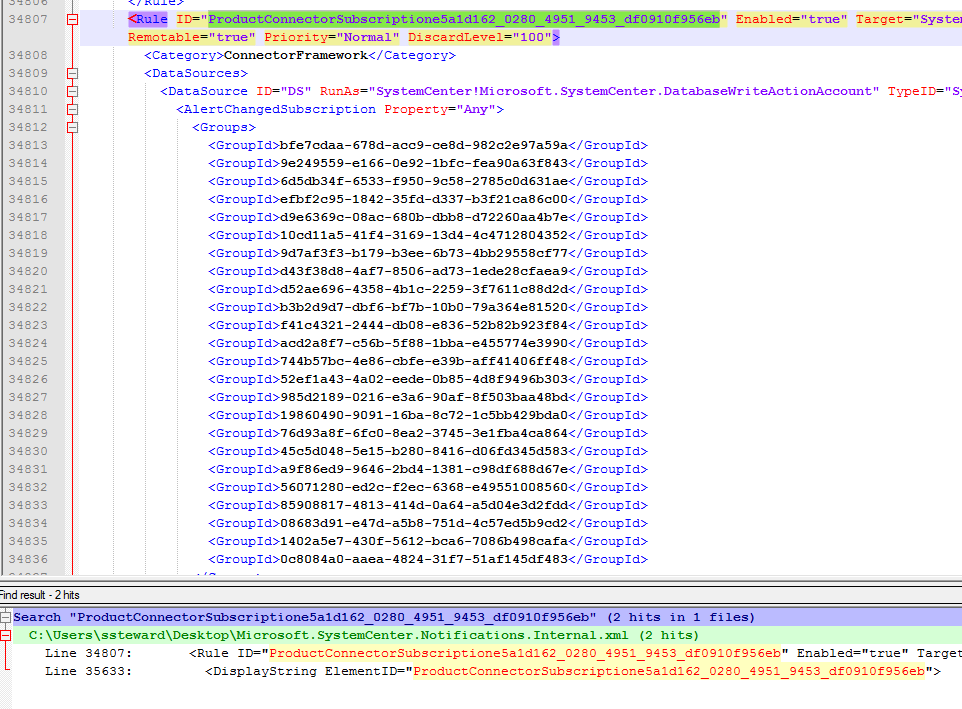
first we need to find the product connector subscription.  if you scroll to the bottom of the xml, you'll start to see familiar subscription names.  note: this mp can have thousands of lines (mine has 35,600+).  it'll ultimately depend on the number of subscriptions you have in the environment.


normal email subscriptions created in scom will have an elementID similar to this:


subscriptions in the scom alert connector will have en elementID similar to this:


in my case I want to exclude alerts created by the exchange mp so i'm going to modify the section of the subscription that relates to that.  i copy the above elementID for Exchange and do a find in the current MP to see where else it shows up.  note: only copy ProductConnectorSubscriptione5a1d162_0280_4951_9453_df0910f956eb - not the text before or after it.


you should only find it in one other place.
scroll down past all the groupIDs and typeIDs.  you'll eventually arrive to the beginning of the criteria section and the expressions.  this is where you want to be.  for best practice i comment out what exactly my customizations are.  after the criteria, expression and and tags, i add my own expression which will exclude the specific ruleID i found above.


notice the property is RuleId, the Operator is NotEqual and the Value is the value of the RuleID we found above.  if you have more than one exclusion, you just keep adding like this:


an important note:  once you edit the XML section of the productconnectorsubscription, you cannot modify it via the console again or else it'll wipe out your customizations.  here's some testing i did to better illustrate this:

Created a new exchange e-mail subscription in the scom console - kept the custom logic

Created a new subscription on the scom alert connector (alertsync) - kept the custom logic

Modified the e-mail scom subscription by adding a rule - kept the logic

Modified the exchange scom alert connector subscription - removed the logic


basically, if you modify the Exchange subscription via the GUI shown above, you'll lose the custom logic for excluding the alerts.  so, definitely back the file up once you've got it right and then in the future, if you want to make modifications to it via the scom console, just make sure you have that backup so you can transplant the custom XML after you've modified it via the scom console.  hope this helps!


another good resource is here.


Friday, November 18, 2011

How to Integrate VMM 2008 R2 into SCOM 2007 R2


  • Ensure Virtual Machine Manager service is running as svc-vmm or domain account other than Local System
    • VMM Agent can be running Local System
  • Add svc-vmm (or other domain account running the VMM service) to the Local Admins on the SCOM RMS
  • Remove previous VMM 2008 MPs from SCOM before importing VMM 2008 R2 MPs
    • VMM 2008 R2 MP is located with the VMM media ONLY - this tripped me up for a solid 5 minutes
  • Open VMM logged in as svc-vmm (or other domain account running the VMM service) and launch SCVMM console - if prompted for credentials or server, click OK
  • Navigate to Administration > System Center and double-click Operations Manager Server - type the FQDN of the OpsMgr RMS
  • Navigate to Administration > System Center and double-click Operations Manager Reporting URL - type the FQDN of where SSRS is installed for SCOM Reporting with a /ReportServer at the end - example http://SCOMRPT01/ReportServer
Not too difficult, but as per everything Microsoft if your permissions aren't correct, or you haven't removed all previous VMM MPs from SCOM - you'll get cryptic errors.  Enjoy!

This is also a helpful document: http://technet.microsoft.com/en-us/library/ee236428.aspx

Wednesday, August 24, 2011

Stale/Gray objects in Operations Manager

Occasionally you'll have grayed out agents in your Monitoring view in SCOM.  This can be due to the fact that a server was decommissioned before you had a chance to properly uninstall the agent and delete it from the Administration pane.  Even after you delete it from the Administration pane the object may still appear grayed out.  For this, I turned to SQL Management Studio.


First I run this query against the OperationsManager DB:
SELECT * FROM dbo.[BasemanagedEntity] where FullName Like '%computername%'

This shows me all instances that still reside in the DB for that computer.  Scroll over the the IsManaged and IsDeleted column.  You'll often, not always, notice a mixture of 1's and 0's.  Ideally if you want this server deleted IsManaged = 0 and IsDeleted = 1.  All it takes is one of the items in the IsDeleted column to show 0 for the object to show in the console in a gray state.


Which leads us to the SQL query to remove these from the console:

USE [OperationsManager]
UPDATE dbo.[BaseManagedEntity]
SET
[IsManaged] = 0,
[IsDeleted] = 1,
[LastModified] = getutcdate()
WHERE FullName like '%computername%'


Now IsManaged = 0 and IsDeleted = 1.  Refresh your SCOM Console and...


No more gray agent :)

The query to run the data purging Stored Proc is as follows:


DECLARE @GroomingThresholdUTC datetime
SET @GroomingThresholdUTC = DATEADD(d,-2,GETUTCDATE())
UPDATE BaseManagedEntity
SET LastModified = @GroomingThresholdUTC
WHERE [IsDeleted] = 1
UPDATE Relationship
SET LastModified = @GroomingThresholdUTC
WHERE [IsDeleted] = 1
UPDATE TypedManagedEntity
SET LastModified = @GroomingThresholdUTC
WHERE [IsDeleted] = 1
EXEC p_DataPurging

I believe this runs each night but just in case you want to force it.  Should only take a few seconds.


If that doesn't fix it, follow this guide: http://blogs.technet.com/b/kevinholman/archive/2008/09/29/agent-pending-actions-can-get-out-of-synch-between-the-console-and-the-database.aspx

Failed to create process due to error '0x80070002 : The system cannot find the file specified. ', this workflow will be unloaded.


I recently was receiving this message on one of my monitored DC's....

Event Type: Error
Event Source: Health Service Modules
Event Category: None
Event ID: 21400
Date: 8/24/2011
Time: 9:08:02 AM
User: N/A
Computer: SERVERNAME
Description:
Failed to create process due to error '0x80070002 : The system cannot find the file specified.
', this workflow will be unloaded.

Command executed: "C:\WINDOWS\System32\cscript.exe" /nologo "C:\Program Files\System Center Operations Manager 2007\Health Service State\Monitoring Host Temporary Files 1\84\DiscoverVMMSelfService.vbs" {E68CED9E-FB3F-B856-E3D5-F3A91FCA395B} {72BEBFB5-0B16-F3BA-8B9A-281D81DBA0C3} SERVERNAME
Working Directory: C:\Program Files\System Center Operations Manager 2007\Health Service State\Monitoring Host Temporary Files 1\84\

One or more workflows were affected by this.

Workflow name: Microsoft.SystemCenter.VirtualMachineManager.2008.SelfService.DiscoveryRule
Instance name: SERVERNAME
Instance ID: {72BEBFB5-0B16-F3BA-8B9A-281D81DBA0C3}
Management group: SCOMManagementGroup

For more information, see Help and Support Center at http://go.microsoft.com/fwlink/events.asp.

>>>

Turns out the issue was that cscript.exe was not in C:\WINDOWS\SYSTEM32.  Another issue could be that  Windows Server Support Tools are not installed to C:\Program Files\.

Tuesday, July 19, 2011

service manager 2010 MP for operations manager not monitoring workflows availability

after importing the service manager management pack, you might find that the workflows availability monitors (grooming, linking and wf) are not monitored.  this is because you haven't configured a database write action account for service manager inside scom yet.

in scom:
navigate to the administration pane > accounts
create a windows run as account.  name it something like "service manager database write action account".
the credentials will be whatever account you've configured already in service manager to be the database account.
for distribution, i always choose "more secure" and in this instance i'll target all my service manager and sql servers.

now click on profiles and find the "service manager database account" which is automatically created when you import the service manager mp.  double-click this account profile, click run as accounts on the left and click "add".  choose the account from the drop down list that you created in the previous steps and target 'all objects'.  save you changes and wait a few hours unless you feel like altering the discoveries.

Tuesday, March 22, 2011

IS Package Failed

In conjunction with my post at http://social.technet.microsoft.com/Forums/en-US/operationsmanagergeneral/thread/b76658a3-2153-4c52-b7cf-0a2b707e3fd4, these screen shots show what is happening.


Event Viewer on SQL006 - 1 eventID 12291 occurs...


which creates 2 alerts in the SCOM Console.  1 for the node (SQL006 - bottom of the two shown) and one for the instance (SHRD2 - top of the two shown) which happens to be the only instance on that node.  If there were more instances (like on the other nodes) there would be a SCOM alert for each of those SQL Instances - this is just a bad example but the only one I have right now since it was requested that I set an override.


Thursday, November 11, 2010

if you have a clustered RMS...

You may encounter this error on the primary node of the RMS cluster:
A container for the management group MG2 either does not exist in domain demoxxx.net or the Run As Account associated with the AD based agent assignment rule does not have access to the container. Please run MomADAdmin for this Management Group before configuring assignment rules and make sure the associated Run As Account is the member of the Operations Manager Administrator role ---


Workflow name: _DEMOWMP_VCDEMON230_CAP_demowmp.net
Instance name: VCDEMON230-CAP.demowmp.net
Instance ID: {A5B7E322-E737-EA17-25C1-B52097AAD4AF}

Management group: MG2

The issue is that each node in the cluster doesn't not have permission to create a service connection point in Active Directory.

Here is the command to run to grant permissions to each node of an RMS cluster in Active Directory:


dsacls CN=MG2,CN=OperationsManager,DC=yourdomain,DC=com /G CLUSTERNODE1COMPUTERNAME$:CC;serviceConnectionPoint;
CLUSTERNODE1COMPUTERNAME$:CC;group; CLUSTERNODE1COMPUTERNAME$:RCLCRPDTLO;;


(all one line)
Run this command for each node of the cluster.

Next, open Active Directory Users and Computers. On the View menu, select "Advanced Features". Navigate to the OperationsManager -> Group Name> container. Right click on your Management Group's name (container), then point to All Tasks -> click Delegate Control. Click Next. Click Add. Click Object Types, and select Computers. Click OK. Enter the name of each RMS cluster node, and enter the RMS cluster service name as well. Click OK. Click Next. Check the box for "Modify the membership of a group", then click Next. Click Finish. Finally, use Cluster Management to restart the entire RMS cluster "service".

Thanks to Frank for basically figuring this out.

Monday, November 1, 2010

High-Level SCOM 2007 Install

Pre-Requisities
  • Determine IP addresses and server names
    • server names CANNOT be changed once SCOM is installed
  • From the SCOM 2007 R2 media, run SetupOM.exe and click “Check Prerequisites”.
  • Choose what components will be installed on the machine (do this for each server)
  • Root Role Components – Server, Console , Power Shell, Web Console
  • Install .NET 2.0 and 3.0 Framework, Powershell, IIS and anything else it advises
  • Register the 64-bit version of ASP.NET (if installing on 64-bit OS)
  • Install 4 required Windows Server 2008 hot-fixes to support OpsMgr Server roles on Windows Server 2008 – 951327, 952664, 953290, 951116
  • Create five (5) service accounts and one (1) security group in Active Directory
    • sa_opsmgradmin
    • sa_sdkconfig
    • sa_mgmtsvraction
    • sa_datareader
    • sa_datawhwrite
  • Create a Security Group - sa_opsmgradmins > add sa_opsmgradmin & any other OpsMgr admins
  • On the SQL server & SCOM server(s), add the security group created above to the local administrators group
SQL Installation & Configuration

  • Install SQL Server – Reporting components and Tools (Management Studio)
    • Note: Reporting Services can be installed on any server if there is an issue with installing the SCOM Reporting component on the SQL Server
  • Install SQL SP3 (if SQL 2005), Install SQL SP1 (if SQL 2008) *Service Packs are included in the slip stream CD.
  • Take snapshot if virtual
  • Run Reporting Services Configuration Wizard (steps will vary slightly between SQL 2005 and 2008)
    • Wizard will create two DBs – ReportServer & ReportServerTemp and two virtual directories - http://technet.microsoft.com/en-us/library/bb432146.aspx
    • Select and create a web service URL > accept defaults > click apply
    • Select and create report manager URL, accept defaults, click apply
    • Confirm Report Server website is up and running – http://localhost/reportserver, http://localhost/reports (navagable from the server that Reporting Services is installed to)
    • Confirm Reporting services is configured correctly. Take a snapshot
  • Install OperationsManager database on SQL server (click “Install Operations Manager 2007 R2” from the media and select only the Operations Manager DB – not the Management Server, Web Console or any other options)
  • Set DB to autogrow – do this in the SQL Management Studio after the DB is created
  • Install OperationsManagerDW on SQL server (click “Install Operations Manager 2007 R2 Reporting” from the media and select only Operations Manager Datawarehouse – not the Reporting Server option)
  • Set DB to autogrow – do this in the SQL Management Studio after the DB is created
  • Add login in SQL MGMT Studio for sa_opsmgradmin - set default DB to OperationsManager (or you can run install as sa_sql)
    • Server Roles - public, sysadmin
    • User Mapping - public, dbowner (on OperationsManager)
  • From the SCOM 2007 R2 media, run SetupOM.exe and click “Check Prerequisites”.
SCOM Installation & Configuration

  • Install SCOM - http://technet.microsoft.com/en-us/library/bb432146.aspx
  • Install Management Server first (will become Root MS since it’s the first MS in the environment) Roles: Management Server, User Interfaces, Command Shell, Web Console
    • Update mommodules kb941811 if issues
  • If installing to default SQL Instance, use only server name when specifying SC Database Server Instance
  • Use Windows Auth if installing the Web Console
  • Confirm Health of Mgmt Group by opening the console
  • Take registry backup/snapshot if virtual
  • Import the Windows Server Core OS MP to get base metrics
    • Adminstration Console, Right-Click, Import Mgmt Packs
  • Install Reporting once it’s confirmed that the Management Group is healthy (optional)
  • Install Audit Collection Services once it’s confirmed that Reporting & the Management Group are healthy
  • Navigate to http:// \Reports_
  • Click on Audit Reports
  • Click Show Details in top right corner
  • Click DB Audit
  • Edit Connection String to point to the correct data source and catalog
  • Select “Credentials stored securely in the Report Server”
  • Use SQL Service Account
  • Check “use as windows credentials” when connecting to the data source”.
  • Open SQL Management Studio
  • Navigate to Security>Logins, Right Click Data Reader Service Account, Select Properties
  • Click User Mapping
  • Select “OperationsManagerAC”
  • Add “DB_Owner” and “Public” mappings
  • Click OK
  • If errors are still occurring for remote access. Try enabling Remote Errors (http://technet.microsoft.com/en-us/library/aa337165.aspx)
  • Requires a new database to be created (best practice)
  • Requires ACS Reporting services to be installed
Best Practices
  • Enabled Network Adapter monitoring state (include Override Mgmt Pack)
Service Level Dashboard (Dundas Gauges)
  • Ensure sa_opsmgradmins group has local admin access

SCOM 2007 R2 Active Directory Integration

SCOM Active Direcotry Integration is used to publish the Service Connection Points (SCP) in Active Directory. This will allow manually installed agents to query AD to determine which management group they belong to for automatic management when they come ‘online’.
  • Ensure the domain functional level is at least 2003
  • On the RMS, login as a DOMAIN ADMIN and open a command prompt and navigate to c:\program files\system center operations manager 2007
    • MOMADAdmin.exe syntax is MomADAdmin ManagementGroupName MOMAdminSecurityGroup PrincipalManagementServerComputerName Domain
      • ManagementGroupName is the name of the OM Management Group. For each management group to be integrated, you need to run this tool so that a separate container is created.
      • MOMAdminSecurityGroup is the name of your OM Admin Security Group
      • PrincipalManagementServerComputerName is the name of the primary management server for this group.
      • Domain is the domain name of the domain being prepared.
  • When you run the tool, the following occurs:
    • Creates an Operations Manager container under the root of the domain specified.
    • Creates a container under the Operations Manager container the tool just created with the name of the management group specified.
    • Within the management group container, the tool creates two service connection points (SCP) and one security group
  • To verify:
    • Open Active Directory Users and Computers (DSA.msc)
    • Select View\Advanced Features from the toolbar and expand the domain
    • Expand OperationsManager and select the management group name to verify the HealthServiceSCP point was created successfully for the management group.
      • Note the addition of the RMS machine account (Root Management Server) to the management group name container. (Right-click, Properties, Security tab).
  • Open the “Administration” and click the top-level Administration container in the Operations Console.
  • Click the “Configure Active Directory (AD) Integration” link under “Optional Configuration”.
  • On the “Configure Active Directory (AD) Integration” screen select “Add” and then “Next” to continue.
  • Leave "domain name" selected as the domain name. Select “Next” to continue.
  • Create inclusion criteria by selecting “Configure”.
  • If we wanted to, for example create an inclusion rule for all machines that started with EXCH (for Exchange) we would create an inclusion rule similar to the following (Enter the following ):
  • Computer name: EXCH*
  • Role: Exchange Server
  • Select “OK” to continue. Run through the rest of the screens.

Tuesday, May 11, 2010

scom doesn't detect exchange 2007 servers

this is by design in scom 2007 r2. a few simple steps will get you there though.

verify discovery helpers
-don't scope your views and click on "discovered inventory" in the monitoring pane
-right-click and click "choose target type"
-type "Exchange 2007 Discovery Helper" in the look for field
-exchange 2007 servers should appear w/ "not monitored" status

enable the discoveries (see note2 and image below for more info)- http://blogs.technet.com/momteam/archive/2010/02/23/exchange-2007-management-packs-do-not-automatically-monitor-exchange-servers.aspx

note1: discoveries only run every 24 hours (86400 seconds), so i'd recommend changing that override as well when enabling the discovery for each exchange 2007 role. change it something like 120 or 180 seconds, wait for the discovery and verify in the monitoring pane, then remember to change it back to the default (86400 seconds).

note2: hub transport and client-access are easy to find in the list of object discoveries. mailbox role is under the rule named "Exchange 2007 Standalone CCR Node Discovery". everything else is pretty self-explanatory.